Word to Terms
The WordTerm data will be stored in the ge_WordTerm table of the IGEM DB defined in the initial parameters. The available fields are:
word: The word or set of words that convert to Term (unique)
term_id: foreign_key to ge_Term that link word with one Term
commute: Flag used to convert. If it is the same criterion between Term and WORD, disable this flag to reduce memory consumption during the ETL process.
status: Flag to activate the relationship
The inclusion of new data can be performed via the process db . On the command line:
$ python manage.py db --load_data "table='term', path='{your_path}/term.csv'"
Other commands and functions for manipulating master data can be found in the database management tab.
Web Interface
Through IGEM’s friendly web interface, it will be possible to carry out Term management activities.
Activate the IGEM web service if you have not already done so. Go to the IGEM folder and type the command line:
$ python manage.py runserver
>>> Watching for file changes with StatReloader
  Performing system checks...
  System check identified no issues (0 silenced).
  March 24, 2023 - 12:56:26
  Django version 4.1.5, using settings 'src.settings'
  Starting development server at http://127.0.0.1:8000/
  Quit the server with CONTROL-C.
If it returns a port error, you can specify a different port:
$ python manage.py runserver 8080
Access the address in the link provided in Starting development server. Significantly, this address may vary depending on the initial settings performed during installation.
After user authentication and on the initial administration screen, select an option Database.
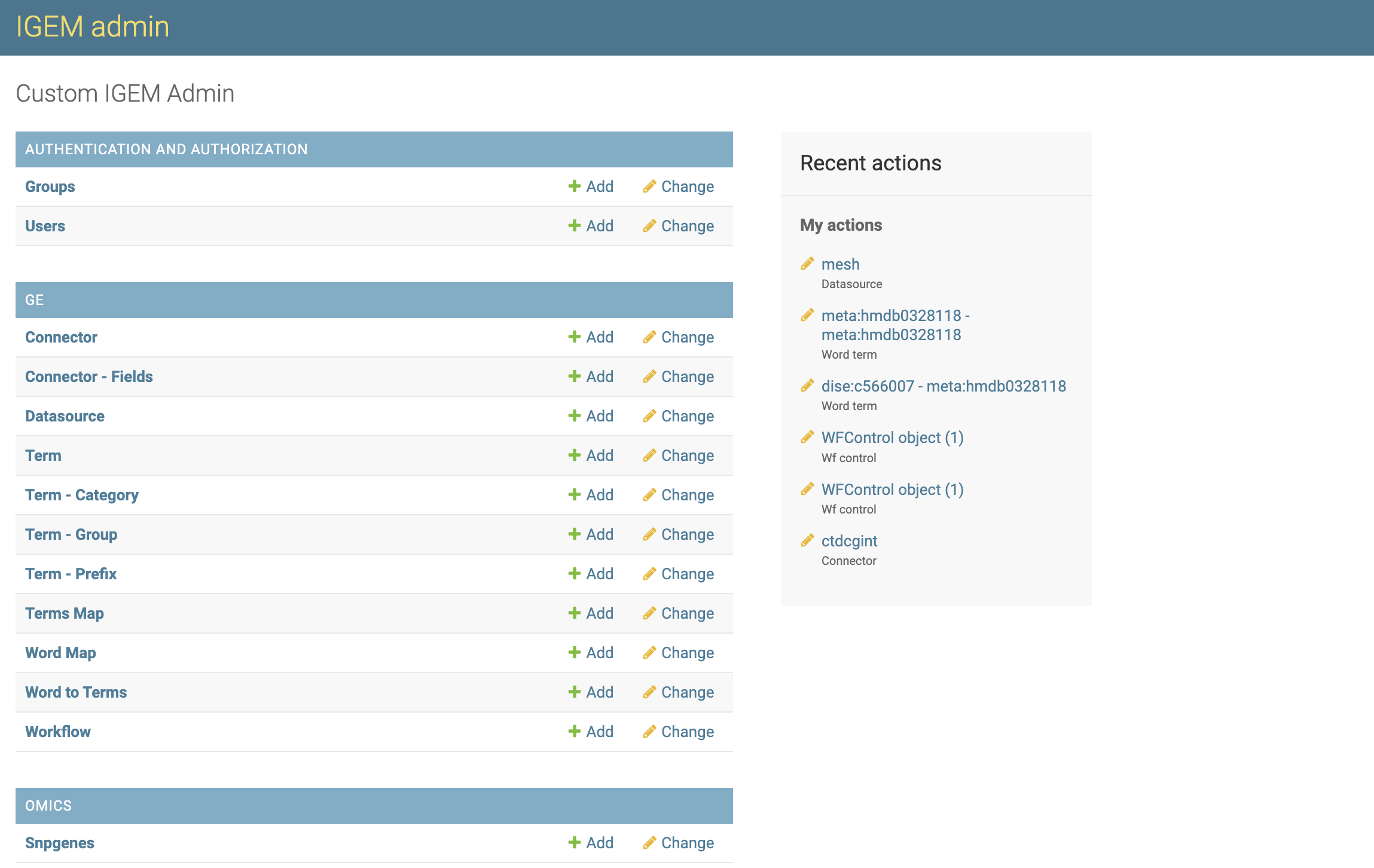
On the Database screen, we will have options to consult, modify, add and eliminate WordTerm.
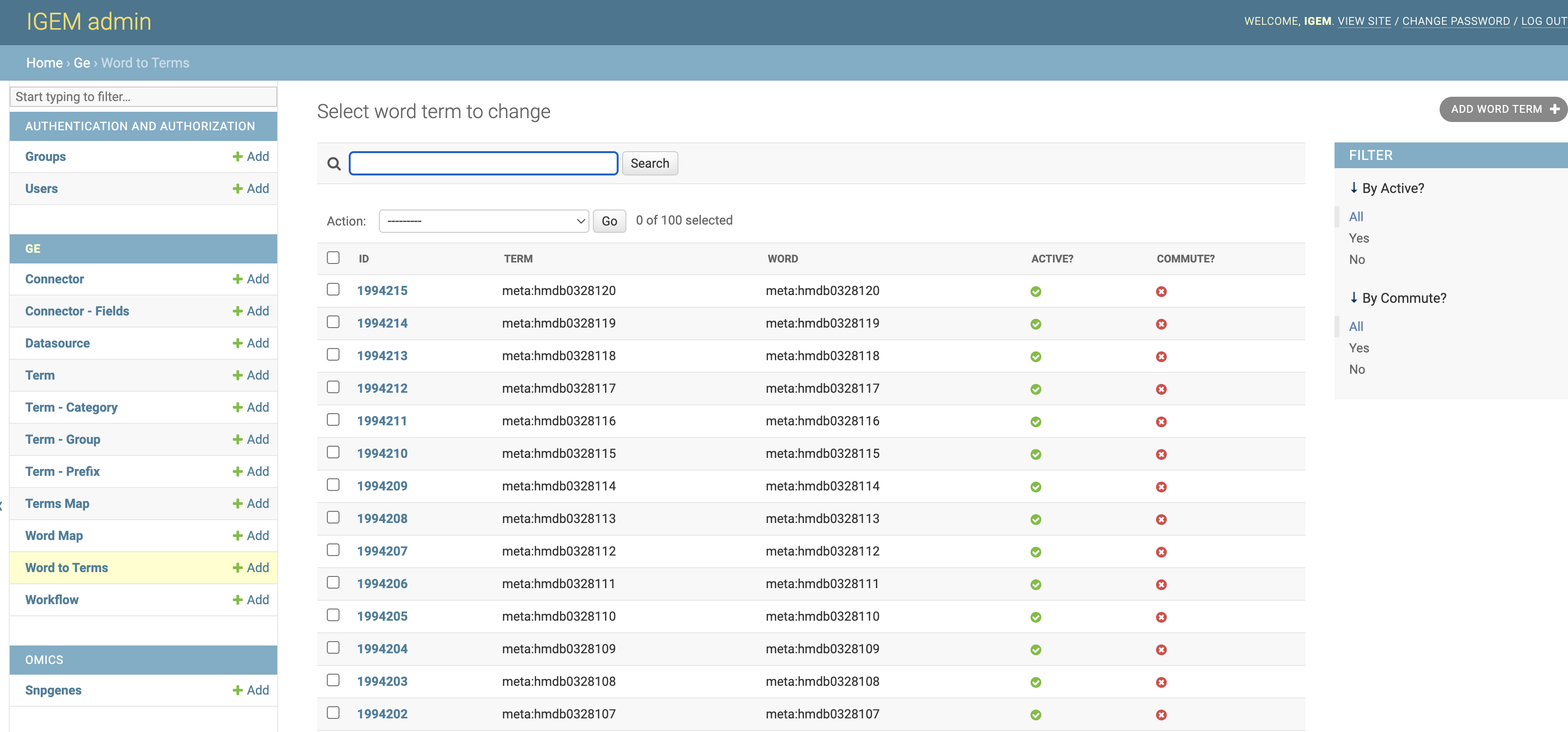
On the first screen, we have a view of all available WordTerm. To consult, click a desired WordTerm.
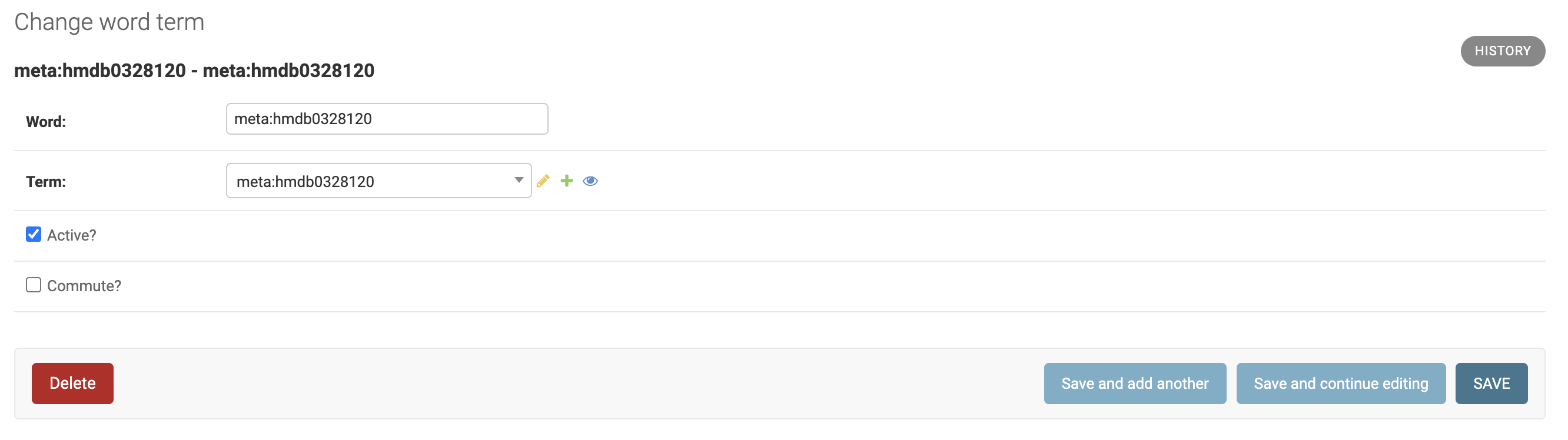
- On the next screen, we have all the WordTerm fields open for modifications. To modify, change the desired information and select one of the three button options:
Save and add another: Will save the changes and open a blank WordTerm screen to add a new WordTerm record.Save and Continue editing: Will save the changes and continue on the WordTerm screen.Save: Will save the changes and return to the screen with the list of WordTerm.
In the History button, we can consult all the modifications carried out in the WordTerm, this function will be important to track modifications and audit the process.
The DELETE button will permanently delete the WordTerm record.
Caution: when deleting a WordTerm, the system will also delete all records dependent on that WordTerm, which include WordTerms, and KEYLINKs
Deletion can also be performed en bloc. On the WordTerm List screen, select all the WordTerm you want to delete, choose the Delete Selected WordTerm action and click on the GO button.
Be careful, this elimination operation will be definitive for the WordTerm and for all other records dependent on it, as already explained.
- To add new WordTerm, we will have three different ways:
by the
+ Addbutton on the left sidebar.Through the
ADD WordTerm +button in the right field of the WordTerm list.Via the
Save and add anotherbutton located within a WordTerm record.
- For the WordTerm, we will have two filter locations:
First located at the top of the WordTerm List screen where we can search broadly.
Second on the right sidebar, being able to select by Actives status and Commute status.